Top Performance Optimization Tips for WordPress Hosting
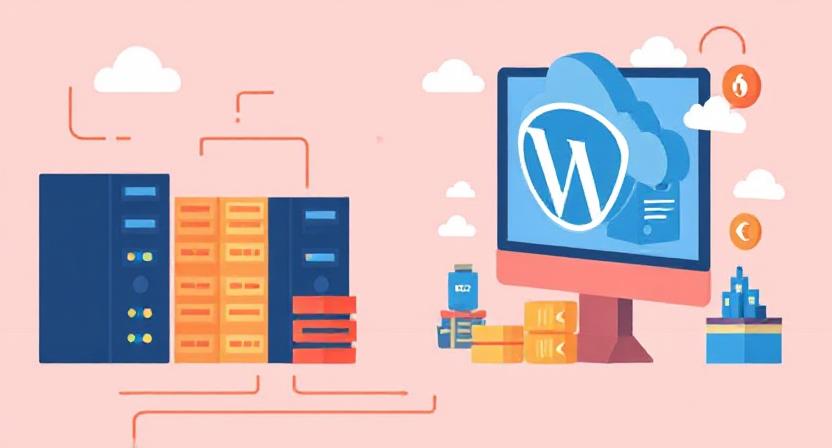
Website speed and performance are more critical than ever. A slow-loading WordPress site can lead to higher bounce rates, poor user experience, and lower rankings on search engines. Whether you’re running a personal blog or a business website, optimizing your WordPress hosting environment is key to ensuring high performance, faster load times, and improved SEO.
Below are some of the most effective performance optimization tips tailored specifically for WordPress hosting.
Why WordPress Hosting Performance Matters
Performance isn’t just about speed—it’s about user retention, SEO success, and server efficiency. Google uses page speed as a ranking factor, and visitors are more likely to leave a website that takes more than 3 seconds to load. That’s why choosing the right hosting and applying optimization techniques can make a measurable difference.
1. Choose a High-Performance WordPress Hosting Provider
Start with the foundation. The quality of your hosting provider directly impacts your site’s speed and uptime.
Look for hosting that offers:
- SSD storage instead of HDD
- Built-in caching mechanisms
- Optimized servers specifically for WordPress
- PHP 8.1+ support
- HTTP/3 and TLS 1.3 enabled
- Global CDN integration
Managed WordPress hosting providers like Kinsta, WP Engine, and SiteGround offer specialized performance tools tailored for WordPress.
2. Use a Lightweight WordPress Theme
Your theme plays a significant role in how fast your website loads. Avoid bloated themes with excessive built-in features you may never use.
Tips:
- Choose a theme optimized for speed (like Astra, GeneratePress, or Neve)
- Keep the design minimal and clean
- Run theme speed tests using tools like PageSpeed Insights or GTmetrix
3. Implement Caching Strategically
Caching reduces the load on your server by storing copies of your website’s content and serving it to users more quickly.
Use:
- Page caching for faster repeat visits
- Browser caching to reduce server requests
- Object caching (e.g., Redis or Memcached) for dynamic websites
Install caching plugins like WP Rocket, W3 Total Cache, or LiteSpeed Cache (if supported by your host) for seamless performance gains.
4. Optimize Images for the Web
Large, unoptimized images are one of the most common reasons for slow websites.
Best practices:
- Compress images using tools like TinyPNG or ShortPixel
- Use next-gen formats like WebP
- Lazy-load images to improve initial page load speed
- Resize images before uploading them to your media library
5. Minify CSS, JavaScript, and HTML Files
Reducing the size of your website’s codebase can significantly improve load times.
Use plugins like:
- Autoptimize
- Fast Velocity Minify
- Asset CleanUp (for unloading unused scripts)
These tools clean up your code and eliminate unnecessary white space, comments, and redundant lines.
6. Use a Content Delivery Network (CDN)
A CDN distributes your website’s static files across a network of global servers, reducing latency for users far from your origin server.
Popular CDNs for WordPress:
- Cloudflare
- BunnyCDN
- StackPath
CDNs not only boost performance but also enhance security and uptime during traffic spikes.
7. Keep WordPress Core, Plugins, and Themes Updated
Outdated software can slow down your site and pose security risks.
Action steps:
- Enable automatic updates for minor versions
- Regularly check plugin and theme compatibility
- Delete unused or abandoned plugins/themes
Choose lightweight, well-maintained plugins to reduce backend bloat.
8. Limit and Optimize Plugins
While plugins extend WordPress functionality, too many of them—or poorly coded ones—can drastically hurt performance.
Optimization tips:
- Deactivate and delete unnecessary plugins
- Replace heavy plugins with lighter alternatives
- Use built-in functionality instead of external plugins where possible
Use performance profiling tools like Query Monitor or P3 Profiler to identify resource-intensive plugins.
9. Enable GZIP Compression
GZIP compresses your website files before sending them to users, reducing bandwidth and speeding up load times.
Most performance plugins or hosting control panels allow you to enable GZIP with a single click. You can also verify compression with online tools like Check GZIP Compression.
10. Monitor and Test Website Performance Regularly
Continuous performance monitoring helps detect bottlenecks and areas for improvement.
Tools to use:
- Google PageSpeed Insights
- GTmetrix
- Pingdom
- Lighthouse (built into Chrome DevTools)
Check both desktop and mobile performance and set performance goals based on Core Web Vitals.
Conclusion
Optimizing WordPress hosting performance is not a one-time task—it’s an ongoing process that combines technical improvements, smart hosting decisions, and regular maintenance. By applying the tips above, you’ll create a faster, more reliable, and user-friendly WordPress site that performs well in both search rankings and real-world use.
Whether you’re a blogger, business owner, or developer, better performance equals better results.
Share this content:











Post Comment